Pages

Friday, December 31, 2010

GUI for the Ubuntu server

For having a GUI for the Ubuntu server download and install
the Xwindows and also GUI login gdm. These can be installed
using the commands

$sudo aptitude install x-window-system-core gnome-core


or (or gnome if you want full desktop environment)

You can also use the Xubuntu desktop using the command

$aptitude install xubuntu-desktop


For installing gui login

$apt-get install gdm


To run the service

$/etc/init.d/gdm start


and that will start the GUI login screen, also GDM should

start automatically after startup.

Thursday, December 30, 2010

How to use rdesktop (Windows remote desktop connection)

rdesktop is a client program that allows you to connect from your Ubuntu computer to your Windows computer to remote control the Windows computer. In other words, while you are sitting in front of your Ubuntu computer at home, you can log into and access your Windows computer as if you are sitting in front of the Windows computer.

Steps

1. Enable Remote connection in Windows.(Server side)

2. Client side

Commands

a) If your windows username and Ubuntu username is the same and if the static IP address of your Windows computer is (suppose) 143.210.123.456, you can now connect to your Windows computer by entering the following command:

$rdesktop 143.210.123.456


b) If the usernames are different and your Windows username is (suppose) john, enter:

$rdesktop -u john 143.210.123.456


c) To disconnect, open Windows Start menu and click 'Disconnect'.

Most cases, you'll use one of the following two commands:

$rdesktop -u john -fP 143.210.123.456

$rdesktop -u john -g 100% -PKD 143.210.123.456
Both commands display remote desktop in full screen (corresponding option : -f, -g 100% -D) and bitmap cache is enabled for speed (-P). There is a bug and clipboard functionality (copy paste between remote desktop and local one) doesn't work in full screen mode. To make clipboard work, you need to escape full screen mode by pressing ctrl+alt+enter. ( Press ctrl+alt+enter again to get back to full screen mode. ) This bug only affects the first command and not the second command. So if you need to copy and paste between two desktops a lot, go with the second command. (Install dragking if you want to copy by selecting a text and paste by middle-click on your Windows desktop. dragking.ahk script requires ahkstructlib.ahk). The two commands also differs in how the keybindings are handled,

* First command : if you press alt+tab (keyboard shortcut for switching windows), it doesn't switch windows from Ubuntu desktop, it switches from the remote Windows desktop. And ctrl+alt+right (for switching to another workspace) doesn't work. This is useful when you want to alt+tab in the remote Windows.

* Second command : keyboard shortcuts such as ctrl+alt+right and alt+tab works on your Ubuntu desktop. This is useful because you can put the remote desktop on the seperate workspace then you can switch between your local ubuntu workspace and your remote Windows desktop just by pressing ctrl+alt+right and ctrl+alt+left.


useful rdesktop options

-r disk:doc=/home/john/Documents,pic=/home/john/Pictures

With this option, rdesktop connects folders /home/john/Documents and /home/john/Pictures to Windows remote desktop. Open Windows Start menu and click 'My Computer' and you will see the connected folders named doc and pic.

-r sound:local

This option is to hear sound from Windows remote desktop.

See /usr/share/doc/rdesktop/redirection.txt for more on device redirection.

-k ko

This sets the keyboard layout to Korean. This makes Hangul key work on the remote desktop. See /usr/share/doc/rdesktop/keymap-names.txt

Wednesday, December 29, 2010

Share files/folders from Windows to Linux on VMWare

If you install Linux O.S. as (Guest Operating System) on top of your existing windows machine using VMware virtual Server check here, Next step is to copy R12/11i/oracle software from windows machine to VMware Linux O.S.

Steps mentioned below are to share folder on Windows (host o.s.) and access it from Linux (guest o.s.)

A. Share folder on Windows Machine
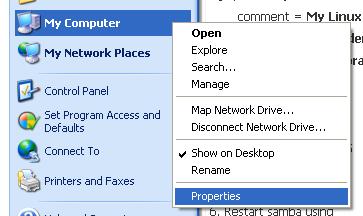
1. Check your windows Workgroup name >> Right click on My Computer and click on Properties

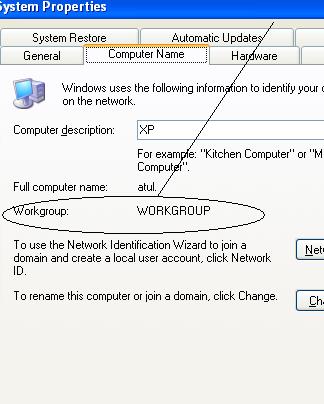
2. Click on Computer Name tab and check Workgroup Name

3. Next step is to share folder on windows machine

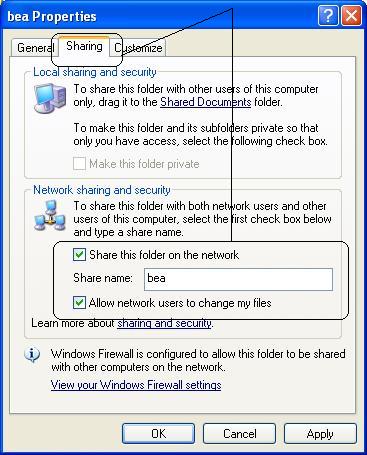
Right click on Folder which you wish to share and access from Linux Machine and click on Properties

4. Click on Sharing taband select Share this folder on the network

.

B. Changes on Linux Virtual Machine (Guest Operating System)

1. During Linux installation, select Customize software packages to be installed

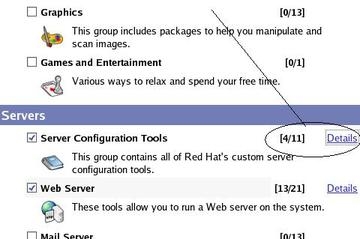
2. Click on Details against Server Configuration Tools

3. Select system-config-samba - Samba Server Configuration Tool

If you don’t want to select Samba Server specifically, then select everything
3. select Everything from package list

After Linux installation, modify samba server configuration

Open /etc/samba/smb.conf and make following changes

1. workgroup = [change it to your windows workgroup] like

workgroup = WORKGROUP

.

2. server string = Samba Server [name] like

server string = Samba Server myLinux Server

3. Uncomment entry like hosts allow = [windows IP address]

to check your windows machine use “ipconfig

hosts allow = [your windows IP address here]

like
hosts allow = 192.168.1.2 (Please change above IP to your windows IP)

4. uncomment these two lines by removing ; (semicolon) from below two lines

encrypt passwords = yes
smb passwd file = /etc/samba/smbpasswd

5. At end of file uncomment following files

[myshare]
comment = My Linux share
path = /BI
valid users = oracle
public = no
writable = no
printable = no
create mask = 0765

Here “path = /BI” is windows share name and ”valid users= oracle” is user on windows machine.
6. Restart samba server using

/etc/init.d/service smb stop
/etc/init.d/service smb start

7. Create directory on Linux to view windows shared folder
mkdir -p /stage/WinServer

8. Mount Windows share foler on linux using
mount -t smbfs -o username=sreejith, password=[password] //192.168.1.2/BI /stage/WinServer

or

mount -t smbfs -o username=sreejith //Computer name/Temp /mnt/shared


above password is windows machine password for user atul (replace your windows username and password)
192.168.1.2 is IP address of windows machine ( Change 192.168.1.2 to your windows IP address and Verify that you can ping windows IP from Linux machine)
BI is shared folder name on windows
and /stage/WinServer is folder name on Linux

9. Access windows share on linux using

cd /stageWinServer
ls


other ways of using samba share

1. Using samba client

$smbclient //computername/Temp -U sreejith

smb:\>help

2. Using samba mount

$smnbmount //computername/Temp mnt/shared

to unmount

$smbumount mnt/shared


Schedule tasks on Linux using crontab

If you've got a website that's heavy on your web server, you might want to run some processes like generating thumbnails or enriching data in the background. This way it can not interfere with the user interface. Linux has a great program for this called cron. It allows tasks to be automatically run in the background at regular intervals. You could also use it to automatically create backups, synchronize files, schedule updates, and much more. Welcome to the wonderful world of crontab.

Crontab

The crontab (cron derives from chronos, Greek for time; tab stands for table) command, found in Unix and Unix-like operating systems, is used to schedule commands to be executed periodically. To see what crontabs are currently running on your system, you can open a terminal and run:

sudo crontab -l

To edit the list of cronjobs you can run:

sudo crontab -e

This wil open a the default editor (could be vi or pico, if you want you can change the default editor) to let us manipulate the crontab. If you save and exit the editor, all your cronjobs are saved into crontab. Cronjobs are written in the following format:

* * * * * /bin/execute/this/script.sh

Scheduling explained

As you can see there are 5 stars. The stars represent different date parts in the following order:

1. minute (from 0 to 59)

2. hour (from 0 to 23)

3. day of month (from 1 to 31)

4. month (from 1 to 12)

5. day of week (from 0 to 6) (0=Sunday)

Execute every minute

If you leave the star, or asterisk, it means every. Maybe that's a bit unclear. Let's use the the previous example again:

* * * * * /bin/execute/this/script.sh

They are all still asterisks! So this means execute /bin/execute/this/script.sh:

1. every minute

2. of every hour

3. of every day of the month

4. of every month

5. and every day in the week.

In short: This script is being executed every minute. Without exception.


Execute every Friday 1AM

So if we want to schedule the script to run at 1AM every Friday, we would need the following cronjob:

0 1 * * 5 /bin/execute/this/script.sh

Get it? The script is now being executed when the system clock hits:

1. minute: 0

2. of hour: 1

3. of day of month: * (every day of month)

4. of month: * (every month)

5. and weekday: 5 (=Friday)

Execute on workdays 1AM

So if we want to schedule the script to Monday till Friday at 1 AM, we would need the following cronjob:

0 1 * * 1-5 /bin/execute/this/script.sh

Get it? The script is now being executed when the system clock hits:

1. minute: 0

2. of hour: 1

3. of day of month: * (every day of month)

4. of month: * (every month)

5. and weekday: 1-5 (=Monday til Friday)

Execute 10 past after every hour on the 1st of every month

Here's another one, just for practicing

10 * 1 * * /bin/execute/this/script.sh

Fair enough, it takes some getting used to, but it offers great flexibility.


Neat scheduling tricks

What if you'd want to run something every 10 minutes? Well you could do this:

0,10,20,30,40,50 * * * * /bin/execute/this/script.sh

But crontab allows you to do this as well:

*/10 * * * * /bin/execute/this/script.sh

Which will do exactly the same. Can you do the the math? ;)


Special words

If you use the first (minute) field, you can also put in a keyword instead of a number:

@reboot Run once, at startup

@yearly Run once a year "0 0 1 1 *"

@annually (same as @yearly)

@monthly Run once a month "0 0 1 * *"

@weekly Run once a week "0 0 * * 0"

@daily Run once a day "0 0 * * *"

@midnight same as @daily)

@hourly Run once an hour "0 * * * *

Leave the rest of the fields empty so this would be valid:

@daily /bin/execute/this/script.sh

Storing the crontab output

By default cron saves the output of /bin/execute/this/script.sh in the user's mailbox (root in this case). But it's prettier if the output is saved in a separate logfile. Here's how:

*/10 * * * * /bin/execute/this/script.sh 2>&1 >> /var/log/script_output.log

Explained

Linux can report on different levels. There's standard output (STDOUT) and standard errors (STDERR). STDOUT is marked 1, STDERR is marked 2. So the following statement tells Linux to store STDERR in STDOUT as well, creating one datastream for messages & errors:

2>&1

Now that we have 1 output stream, we can pour it into a file. Where > will overwrite the file, >> will append to the file. In this case we'd like to to append:

>> /var/log/script_output.log

Mailing the crontab output

By default cron saves the output in the user's mailbox (root in this case) on the local system. But you can also configure crontab to forward all output to a real email address by starting your crontab with the following line:

MAILTO="yourname@yourdomain.com"

Mailing the crontab output of just one cronjob

If you'd rather receive only one cronjob's output in your mail, make sure this package is installed:

aptitude install mailx

And change the cronjob like this:

*/10 * * * * /bin/execute/this/script.sh 2>&1 | mail -s "Cronjob ouput" yourname@yourdomain.com

Trashing the crontab output

Now that's easy:

*/10 * * * * /bin/execute/this/script.sh 2>&1 > /dev/null

Just pipe all the output to the null device, also known as the black hole. On Unix-like operating systems, /dev/null is a special file that discards all data written to it.

Setting the default file creation permissions : umask


When a file is created, its permissions are set by default depending on the umask setting. This value is usually set for all users in /etc/profile and can be obtained by typing:

umask

The default umask value is usually 022. It is an octal number which indicates what rights will be removed by default to all new files. For instance, 022 indicates that write permissions will not be given to group and other.

By default, and with a umask of 000, files get mode 666 and directories get mode 777. As a result, with a default umask value of 022, newly created files get a default mode 644 (666 - 022 = 644) and directories get a default mode 755 (777 - 022 = 755).

In order to change the umask value, simply use the umask command and give it an octal number. For instance, if you want all new directories to get permissions rwxr-xr--- and files to get permissions rw-r----- by default (modes 750 and 640), you'll need to use a umask value which removes all rights to other, and write permissions to the group : 027. The command to use is:

$ umask 027

The following example explains the steps needed to set umask for permissions 700 for user files. The idea very simply only user is allowed to read or write file.

Default Permissions: 777

Subtract umask value: 077 (-)

Allowed Permissions: 700

$ umask 077

$ touch file.txt

$ ls -l file.txt

Output:-

rw------- 1 vivek vivek 0 2007-02-01 02:21 file.txt

Categories: None

Friday, January 1, 2010

Creating SuperUser/root user in Ubuntu

in the terminal write

$sudo

insert your pasword
and
root passwd

and you define your root pasword

or

$ sudo passwd root
[sudo] password for existing user
Enter new UNIX password:
Retype new UNIX password:
passwd: password updated successfully

Disable super user account password on Ubuntu

Later if you don’t want to use su anymore, you can lock the root user password using one of the methods shown below

$ sudo passwd -l root

( or )

$ sudo usermod -p '!' root